How to Mod Stardew Valley on Different Platforms?

Reasons to Know How to Mod Stardew Valley
Why is it such a deal to mod Stardew Valley? Well, think about modifying your favorite T-shirt. But you aren’t putting on iron-on patches – rather than this, it’s about adding new gameplay mechanics and customization features into the game. Since its release a few years ago, Stardew Valley captured the minds, hearts, and lot of hours of devoted sandbox/RPG fans. No wonder they want to tweak their favorite title even more – to add more vehicles, pets, crops, plants, and house items to use. That is why the following post is dedicated to how to mod Stardew Valley game in 2024 and beyond.
How to Mod Stardew Valley – Learning the Most Common Types
Mods in Stardew Valley come in all shapes and sizes:
1) Content Mods
These are the main parts of the modding community. You can add new crops, animals, or even places to explore. Do you want to grow pineapples on your farm? Just google “how to mod in Stardew Valley pineapples” and you will get a few dozen mods with such an option.

2) Visual Mods
You can make the game look even more stunning. Modify the look of characters, provide a new appearance to your farm, or maybe make everything cute with intense pixel art. It is similar to redecorating but much simpler and funnier.
3) Gameplay Mods
These mods change the way you play. Perhaps you desire an easier fishing experience, or maybe a more difficult one. The gameplay mods are here for you.
The Basics of How to Mod Stardew Valley on Switch, PC, Mac, Xbox and PlayStation
At first, Stardew Valley was available only on Steam in early access but gradually it became available on the current gaming platforms and devices.
PC and Steam
The platform is the modder’s paradise. Steam provides simple access for beginners at modding. Simply get SMAPI (Stardew Modding API) and be creative. It’s like having a magic wand for your game files.
Mac
You don’t feel ignored, Apple followers. The procedure of how to mod Stardew Valley on Mac is quite similar to PC. Ensure you’re getting mods that work with Mac OS. It’s like finding the right adapter for your charger.
Mobile
Android users are also fortunate. Modding can be done but it’s somewhat more difficult. Imagine it as a puzzle to solve. iOS users, sorry – there is no mods for you yet officially. Blame the Apple’s strict rules. But Android users can mod almost any game like the popular title Baseball 9 for instance.
Steam Deck
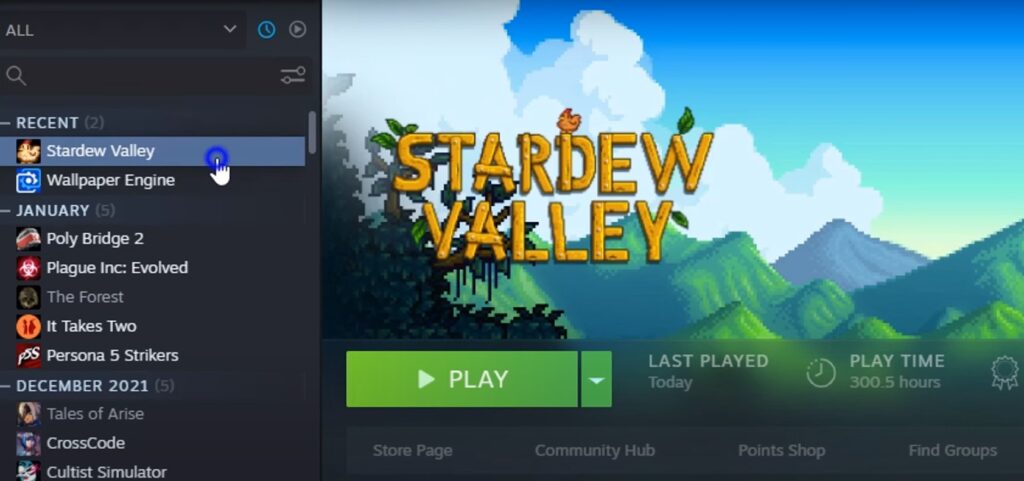
It’s like a small PC. You can follow the instructions for PC, but be prepared for some additional steps. Imagine you are cooking your favorite recipe in a smaller kitchen.
Switch and Xbox
Sorry, console farmers. These platforms don’t support Stardew Valley mods. It’s similar to attempting to add extra ingredients to a frozen pizza – it will not function properly. That is why stop looking for the guide about how to mod Stardew Valley on Xbox or Nintendo Switch.
How to Mod Stardew Valley – Get Your System Prepared
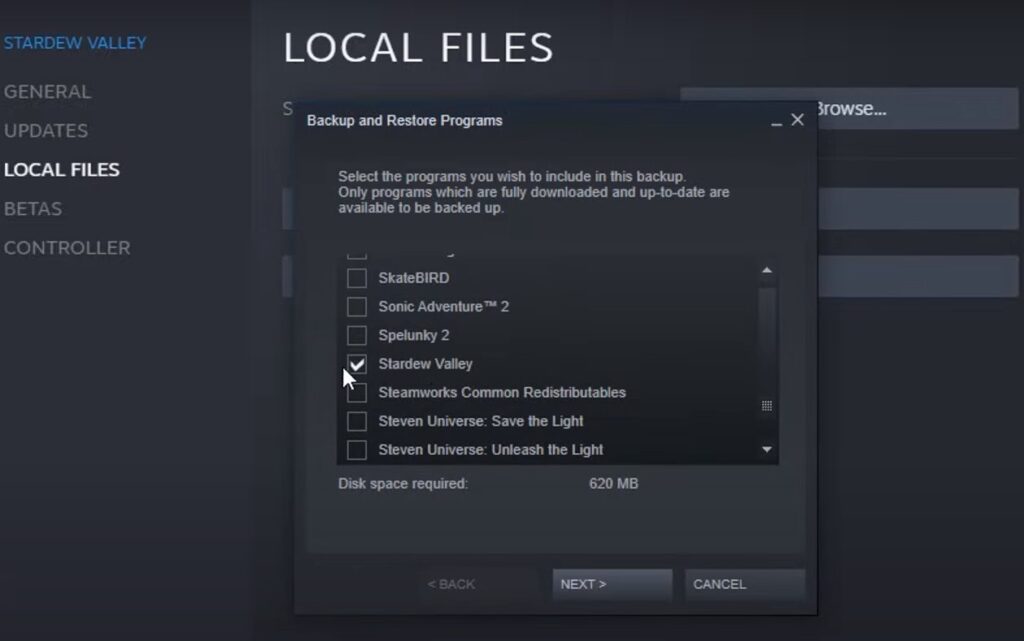
To start with, it’s important to remember that you should always make a copy of your files first before doing any alterations or adding new mods. It is vital to take this step to protect against possible loss of data.
These are 3 most important things to check out when learning how to mod Stardew Valley:
1) File directories
The place where files are stored differs depending on the platform. For PC, you will go to your Steam folder. On Android, you have to search for game files in your device’s storage area. It’s like knowing where each grocery store keeps the milk.
2) Permissions
On certain platforms, they could be particular about what changes you are allowed to make in official gaming mods. For instance, an Android device might request for special permissions before installing a new mod just like acquiring a hall pass in school.
3) Mod managers
For PC players, using tools such as Vortex can assist you. It’s similar to having a personal helper for all your mods. If you are playing on mobile devices, then managing mods will be done manually.
In Stardew Valley of 2024, the mods load one on top of another, starting with the first one alphabetically. To control this scenario, you may put a “z” at the beginning of a mod’s name to make it load later. To turn off a mod without removing it, put a period at the start of its name.
Getting into Modding Stardew Valley isn’t very difficult. You simply require a program to launch Stardew in “modded mode”. Most newbies began by typing “how to mod Stardew Valley on Steam” into Google search and discovered useful materials such as the Stardew Valley wiki.
How to Mod Stardew Valley on PC with SMAPI?
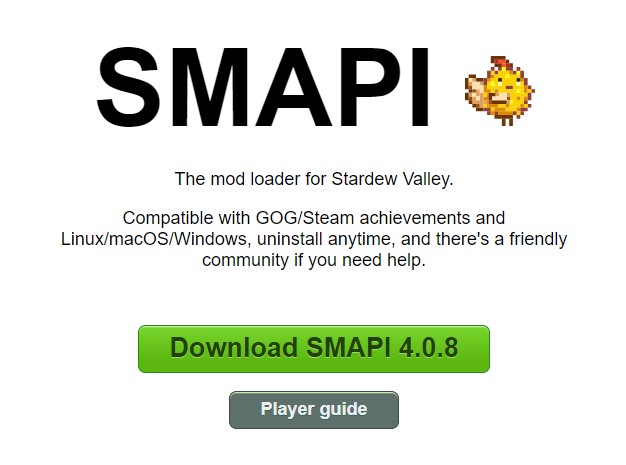
The beginning phase involves putting SMAPI (a.k.a. Stardew Modding API) into the game. This tool allows mods to mingle with the code of the game. You can buy SMAPI from its website, where it also provides other beneficial instruments like a mod compatibility checker and an error log parser.
Unzip the .zip file you downloaded using a program such as WinZip or 7z, then execute the “install on Windows” .bat file and adhere to the given guidelines. Select the installer where to put the game. Normally, this is in the Steam Library folder which is usually found under “SteamLibrary\steamapps\common\Stardew Valley\”.
To locate this folder in Steam, launch Steam and navigate to your Library. On Stardew Valley’s icon, right-click and pick “Properties”. Choose “Local Files” from the left side menu, then press the button saying “Browse Local Files” found at the top right area of said window. This action will automatically open up the folder where the game is installed.
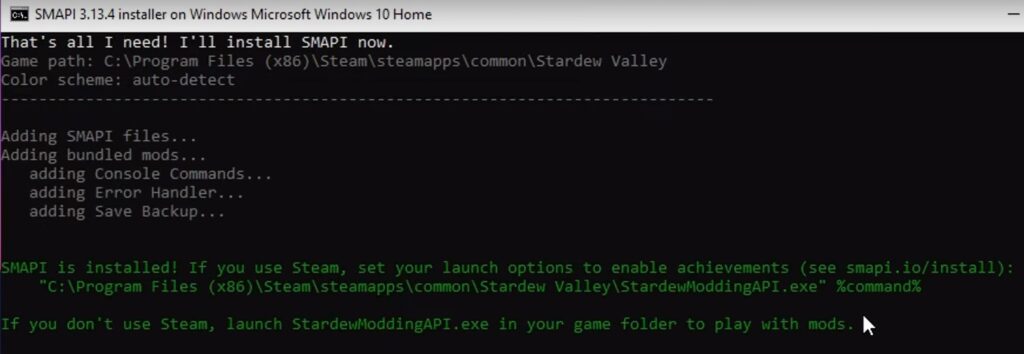
How to mod on Steam Stardew Valley safely – after installing the SMAPI you must visit your Steam Library! Right-click on Stardew Valley, select “Properties” and then copy the URL given by the SMAPI installer into its specified area. Include all the quotation marks, percentage signs, and spaces correctly.
When starting up Stardew Valley always open SMAPI instead of regular application. Please leave the log window open during playtime, because it handles the mods and also keeps track of any errors.
After finishing the process of installing SMAPI, you can start exploring and searching for mods.
Numerous websites offer thousands of mods to choose from:
- NexusMods is a commonly used site where you may sort mods by popularity, mark them as favorites, and write comments asking for assistance from the community;
- An alternative is to use ModDrop, or you can try Naver which provides special mods but might need a Korean account;
To arrange the mods for Stardew Valley manually, you can use such mod managers as ModDrop, StarDrop, and Vortex. You should check this YouTube video explaining how to mod Stardew Valley on Windows OS with all these mentioned tools.
How to Add a Mod to Stardew Valley on PC and Steam?
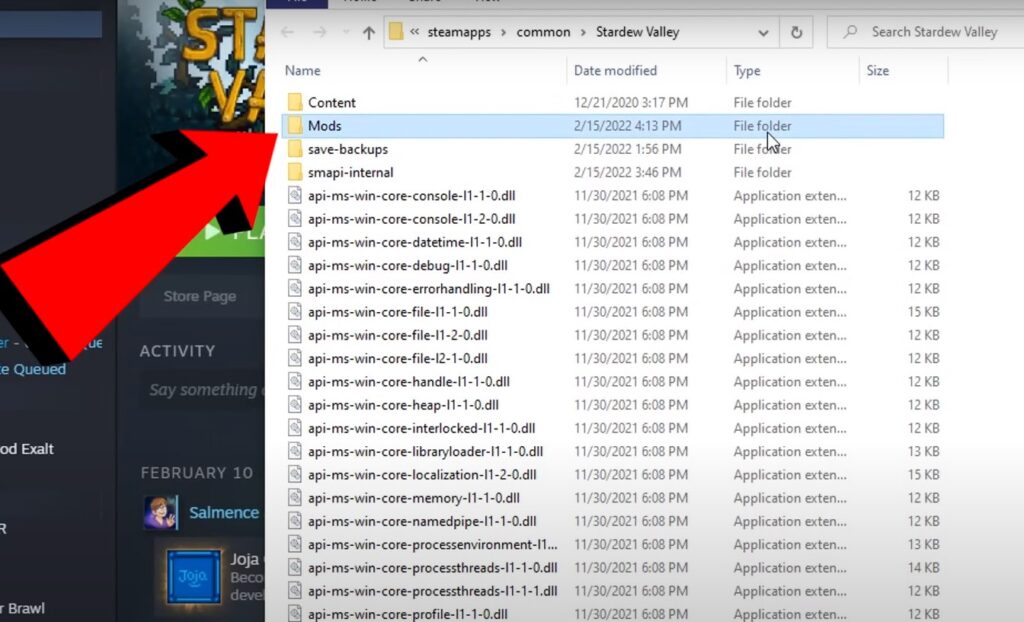
Begin the process by making sure you know where your Stardew Valley installation folder is located. Open this folder, and inside it, you should see directories such as “Content” and “Mods”. At first, the “Mods” folder will be empty.
Make a new folder in Downloads for downloading, unzipping, and arranging mods before installing them. Get your initial mod and shift it to this processing directory. Use right-clicking action to extract the .zip file. If the unzipped folder has a long and complicated name, you need to go inside it. Look for the real mod folder there, which is usually named something simpler like “Yellow Leaf”. Copy the folder into your main processing folder and erase the unzipped file.
In your “Yellow Leaf” folder, you should be able to see files such as config.json, manifest.json, .dll, and .pdb along with other possible components or sub-folders. Take the whole “Yellow Leaf” folder from your processing folder and put it into the “Mods” folder found in the Stardew Valley installation directory.
To improve your “Mods” folder’s organization, you should make sub-folders for different types of mods. This will help in finding and managing your mods in a much better manner, especially when you are trying to resolve issues.
Was this guide useful for you? If you want more secrets about how to mod Stardew Valley on PC and Steam, consider reading this Reddit thread.
How to Mod Stardew Valley – The Challenges After the Version 1.6
Now, comes the hard part – compatibility. Whenever Stardew Valley is updated (like with the recent 1.6), modders need to catch up. It’s a bit like attempting to wear your old jeans after Thanksgiving dinner. Sometimes it works, sometimes you just need new jeans. The 1.6 update really messed up a lot of mods. But hey, don’t worry too much! Modders are tough people. They’re working hard to make everything play nice with the new version.
Important notice! Before you check how to install a mod in Stardew Valley, make sure it works with your game version.
Modding Stardew Valley 1.6 has become quite challenging for several reasons:
- Fundamental changes to game code;
- New features and structure;
- Increased workload for mod developers;
- Backward compatibility limitations;
- Transition to .NET 6.0;
How to Mod Stardew Valley 1.6 on PC with SMAPI in 2024?
For setting up Stardew Valley mods, start SMAPI one time and let it run to the game’s title screen. This checks that the mod is installed correctly and forms any needed config.json files. It would be sensible to make a test save file for checking out the mods. Lastly, shut down the game and return to the “Mods” folder. Locate the config.json file in that mod’s folder and open it to adjust settings according to your liking.
For instance, Elle’s Dog Replacements mod features a range of different dog types and colors. The config.json file lets you choose which particular textures to use. Usually, the creators of mods will give a full set of instructions and reference sheets for your assistance. Make certain you do not remove any quotation marks, commas, or brackets inadvertently from the config.json file because it could generate issues for SMAPI and might even crash your game.
Save your modifications to the config.json file and then run SMAPI again. Now, you will observe the changes in your game’s mod choices. Repeat this sequence for every mod that you want to set up or update. Remember, not each mod will need changes in the config.json file so read carefully what the author of the mod tells on the download page or in the “readme file” which is given with the download package.
How to Mod Stardew Valley on Mobile?
The following guide tells how to mod Stardew Valley on Android OS, though, you can also try all these steps on a jailbroken iPhone or iOS device (not recommended to do on standard iOS phones/tablets, though).
To prepare Stardew Valley for the mods on Android, first you have to install the game from the Google Play Store. Open the game and play it for a few in-game days to make sure that everything is running correctly. After this, close down the game by pressing and holding its app icon then go to the App Info page where the Force Stop option will be available – tap on this.
After that, you will have to install SMAPI. This tool is necessary for managing and running mods without any impact on your gameplay experience.
If you are using the stable release of SMAPI, please proceed by downloading the SMAPI APK from the Android SMAPI page:
- Locate this file within your Downloads folder and execute it. Confirm the necessary permissions, tap “Install” and then “Update” once the installation is complete;
- If you choose the alpha version of SMAPI, first get a file manager app such as CX File Explorer that allows changes to Android/data folder;
- Download the SMAPI installer archive and the latest alpha assembly of SMAPI, unpack the installer archive in the Android/data location, and install the alpha assembly;
- Begin by launching the SMAPI installer;
- Next, you select the three-dot symbol and “Set Mods Path” to Android/data/com.zane.stardewvalley/files/Mods;
- Lastly, start the game by using SMAPI to launch Stardew Valley. If you see it working well then proceed with mod installation;
In case of any problem, try reinstalling SMAPI and carefully review each step again for the correct setup.
How to Mod Stardew Valley without Any Issues?
1) Understand SMAPI Errors
Learn familiar SMAPI launcher and know the various error colors. Yellow is a caution sign, showing that something may not be perfect but it will not break your game; red means there’s a serious issue that needs immediate attention; bright pink/fuchsia tells you about an update available for a mod.
2) Use the SMAPI Log Parser
The SMAPI log parser website is very handy for looking through log files. Just do as the steps say, upload your SMAPI error log to this site and it will help you find and fix problems more easily.
3) Check the Error Messages
Usually, the red or yellow text in SMAPI provides precise information about what is incorrect and how to correct it. If these messages appear confusing, you can explore internet forums and the posts of NexusMods listing to find out if other people have faced similar problems and found solutions for them.
4) Verify Compatibility
Check for compatibility between your Stardew Valley 1.6, SMAPI, and mods versions. Some mods may not be compatible with the latest game updates, so make sure to verify the compatibility details.
5) Reinstall Mods
When you have made many changes to a “config. file” but troubles remain, remove the mod and set it up again.
6) Use the SMAPI Mod Compatibility Tool
This tool can recognize mod compatibility problems and offer connections to upgraded or repaired versions of mods.
Recommended Stardew Valley Mods for Beginners
- UI Info Suite. This includes many convenience features like displaying daily luck, birthdays, XP bars, crop growth time, scarecrow ranges, and NPC locations;
- Stardew Valley Expanded. It brings in extra NPCs, events, maps, and locations to create a new sensation within the game;
- Seasonal Villager Outfits. Updates villager outfits to match the seasons;
- Stardew Valley Diversity. It gives the game a more inclusive feel as it includes characters from different ethnicities, body shapes, and gender identities;
- Hot Spring Cave for Your Farm. This mod introduces a working hot spring and visual enhancements to your farm cave;
- Gift Taste Helper. Shows gift preferences when mousing over villagers;
- Chonkins. Adds chubby chickens for a fun aesthetic change;
To improve your Stardew Valley gameplay, you need to effectively troubleshoot, update, and customize mods by following these steps.
Frequently Asked Questions
How to use tractor mod in Stardew Valley?
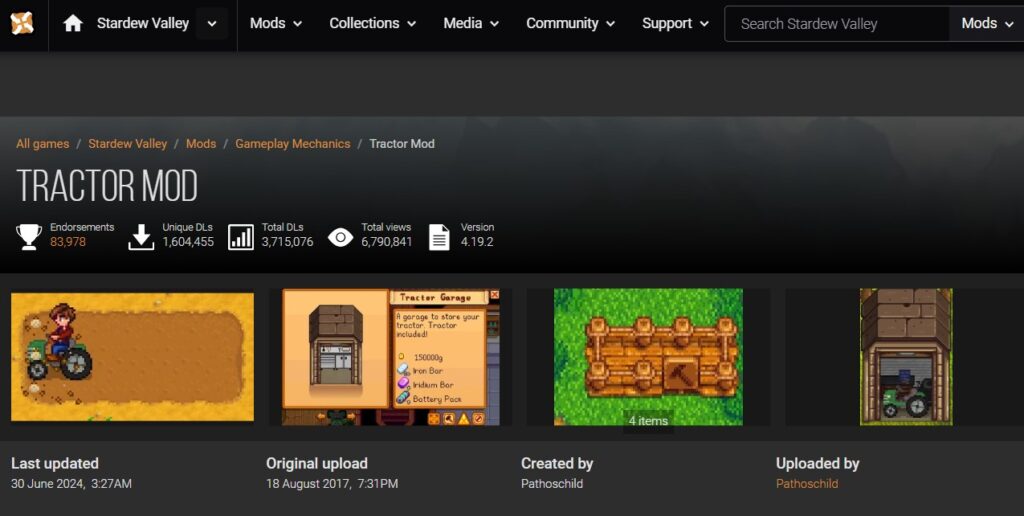
You can install this quite popular modification even after version 1.6. It adds the feature of driving a tractor on your farm field. The fullest guide is located on the special website dedicated to mods of Stardew Valley and other great gaming titles. Consider that the main place to locate these digital treasures is Nexus Mods.
It’s similar to a large superstore where all kinds of Stardew mods are stocked. You’ll see a variety, ranging from minor adjustments to substantial renovations. ModDrop could be seen as a unique mod community platform as well.
How to open the mod menu in Stardew Valley?
To open the mod menu in Stardew Valley, first, you must have the Generic Mod Config Menu mod installed. This mod is used to get into configuration choices for other mods that are compatible. Once it’s set up and ready, access will be granted by tapping on the cog/settings symbol found on the title screen. Or just visit the options menu inside the game where you will locate your mod menu.
Be aware that the mod menu will display choices for only those mods that are intended to function with the Generic Mod Config Menu. The changes done in Stardew Valley’s mod menu are implemented right away. In addition, there is no requirement to restart the game.
Is modding Stardew Valley safe for my computer?
Modding Stardew Valley is safe, but you should be careful. It’s always best to get mods from trusted places like Nexus Mods. Also, check mod files with antivirus software before installing them. The main modding tool SMAPI has been strongly tested by the modding community.
However, mods can create instability or conflicts in the game. So, make sure you save your game files before starting any modding process. Begin with several mods that you trust and slowly include the new ones.
How often do I need to update my mods in Stardew Valley?
Keeping your Stardew Valley mods updated is crucial to ensure good gameplay, but how often you should update can vary. In most situations, you need to check for updates whenever the game itself gets an update. Numerous mods will require updates too to stay compatible with new game versions. Certain popular mods update regularly. Checking for updates is something you should do every few weeks or before beginning a new gaming session.
Conclusion
Knowing how to mod the Stardew Valley game after the big update 1.6 can be quite challenging on Steam and Mac OS. But it is possible if you have such a handy guide nearby. Hopefully, our post has been useful to you, especially if you have never installed mods for Stardew Valley before.